
Headline Features
1. Portal User Self-Service
Investors can now update their investment account details from the portal streamlining the process for self-service.
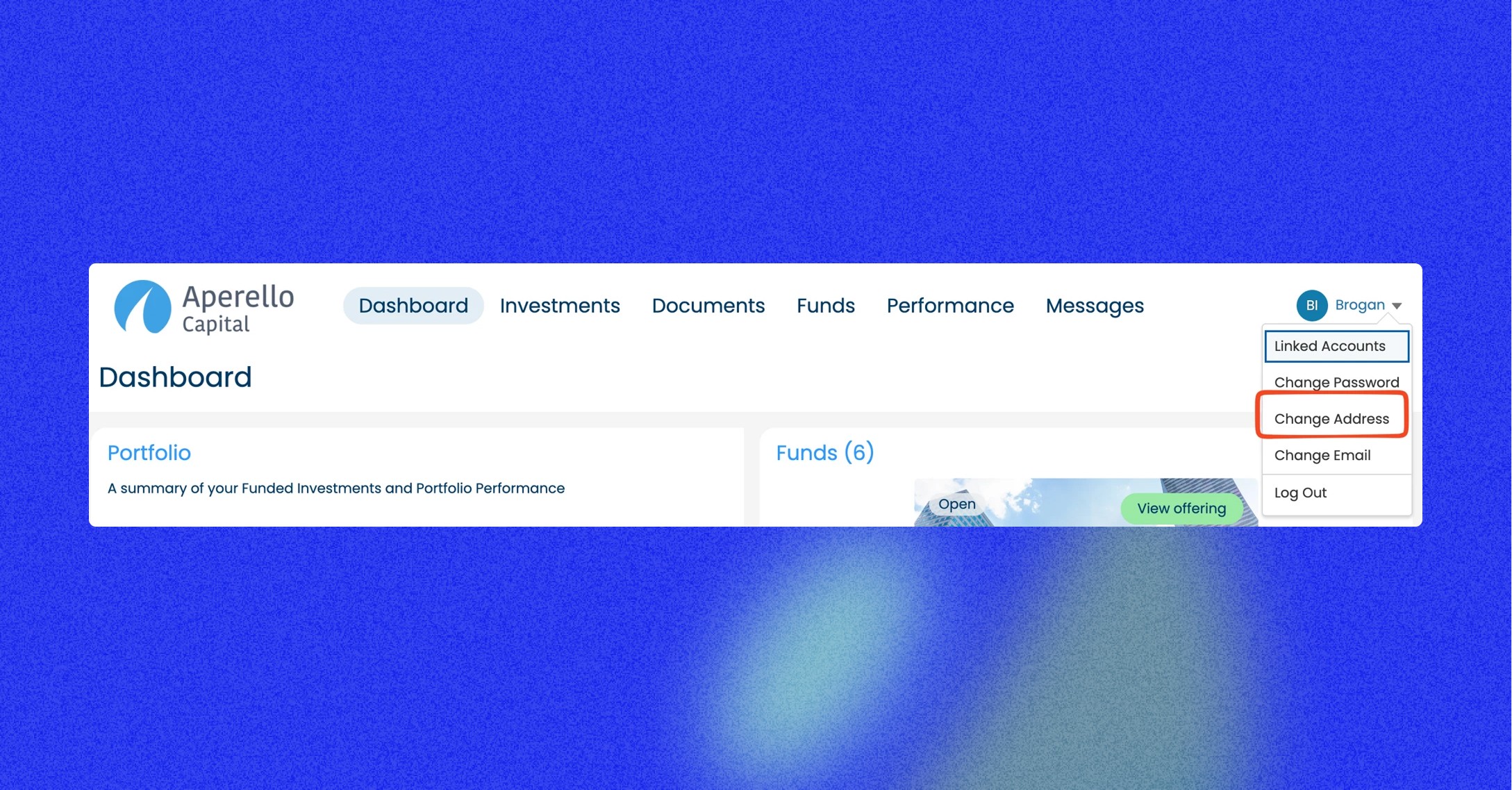
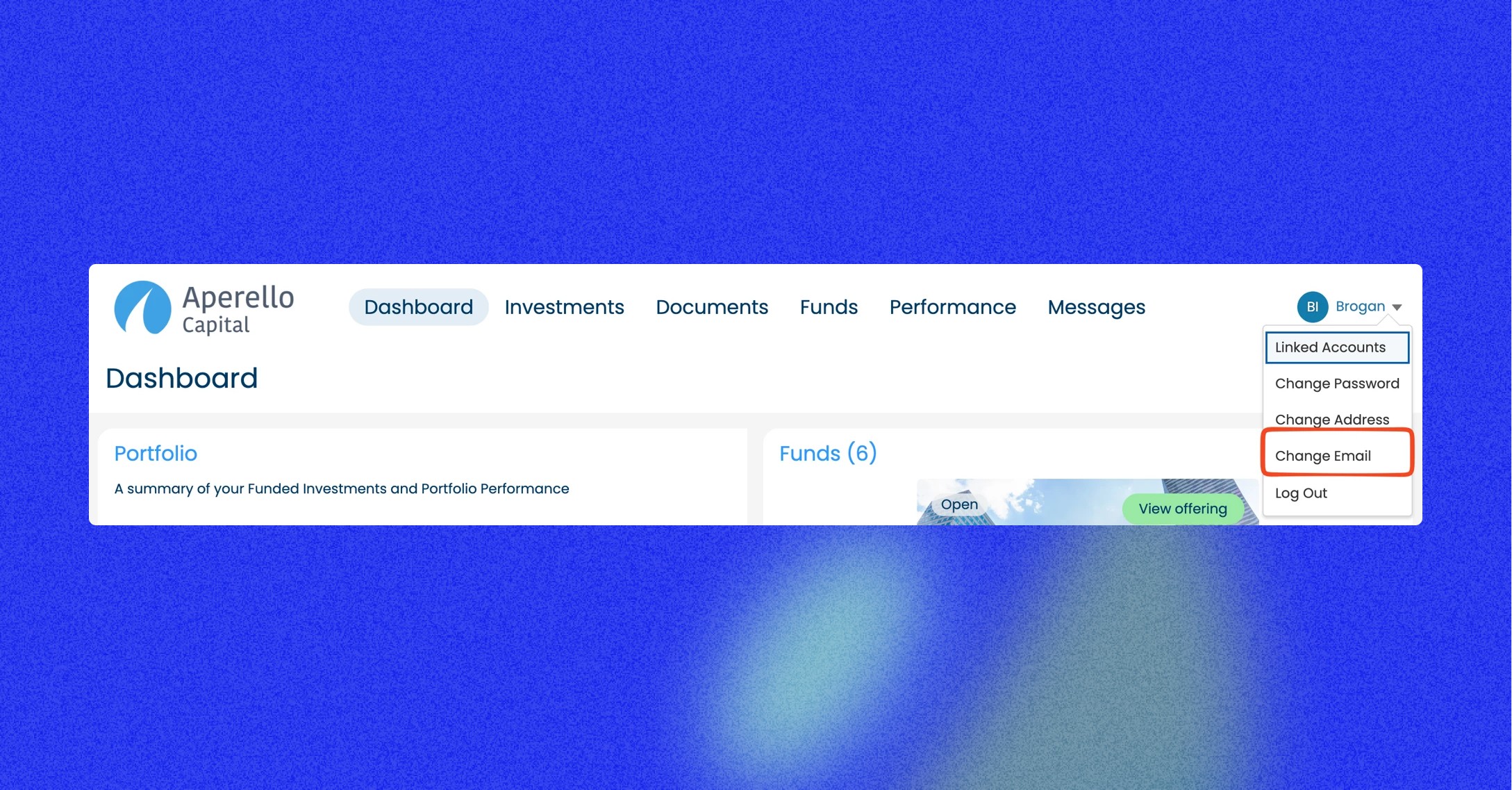
Four actions are available from the user menu (top-right of the portal):
Change Address: The investor selects which LP Relationship or Contact to update. Their current address is pre-filled, or if they have a number of addresses they can select the one they wish to edit. On submission, a task is created and assigned to Investor Relations team for the appropriate compliance checks to be completed. The address field is locked until the task is resolved.
Change Email: The investor submits a new email address. A task is created with the details and flagged to the Investor Relations team to ensure validity before progressing.
Change Distribution Instructions: Available on the investment detail page. The investor can now request changes in a self-service fashion, streamlining the process. Change requests are verified by Investor Relations before approval. A task is created on submission and the component locks until complete.
Request Transfer: Available on the investment detail page and the top-level menu. The investor adds transfer details in a free-text field. A task is created and the component updates to show the request status.
Tasks are configurable: the assignee and due date (default 2 days) can be changed via configuration.
Why it matters: Reduces routine admin queries to your team and gives investors immediate visibility of their account status, with helpful self-service capabilities without a back-and-forth.
2. Evergreen Fund Redemption Distribution
GPs can now easily manage redemption requests for open-ended and evergreen funds.
Setup
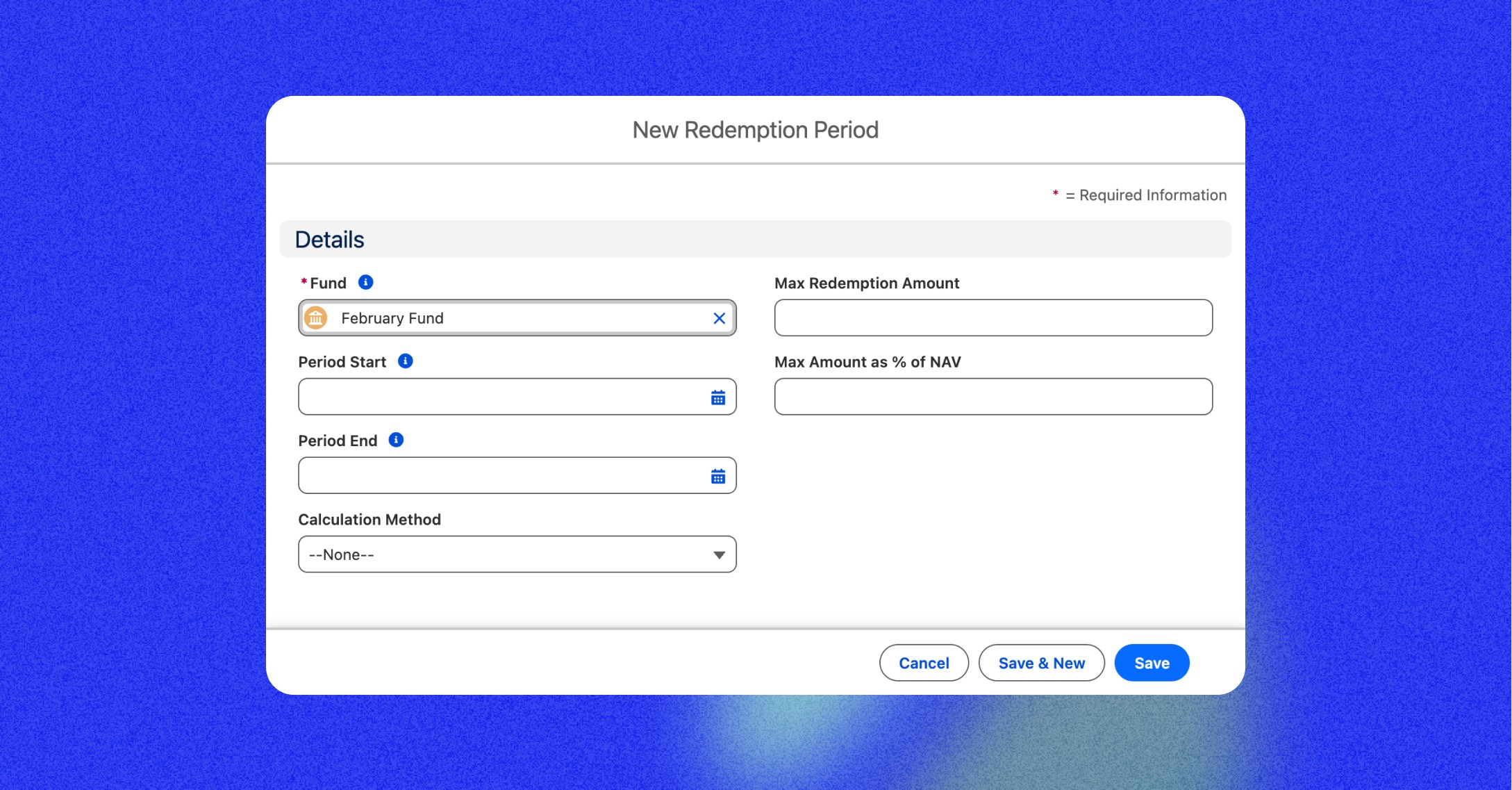
When creating a Redemption Period, you can set the maximum redeemable amount using either a currency field (Max Redemption Amount) or a percentage of the fund's NAV (Max Amount as % of NAV).
Three new fund-level fields control lock-up behaviour:
Redemption Soft Lock-up Period (days)
Redemption Soft Lock-up Period Minimum (days)
Penalty Percentage for Soft Lock-up Period
Distribution
Once the notice period has passed, click Distribute on the Redemption Period. The system calculates redeemed amounts based on the Calculation Method:
FIFO: Requests are fulfilled in order of submission until the cap is reached. Remaining requests receive zero.
Pro-rata: Each request receives a proportional share of the available redemption pool.
On distribution, each eligible Redemption is set to ‘Distributed’, a Transaction is created (Type: Distribution – Redemption, Status: Complete) and linked to the Redemption and Investment. The Redeemed Amount and Redeem Message are made visible to the investor in the portal.
New fields:
Max Redemption Amount on Redemption Period
Redemption Amount on Distribution
Redemption lookup on Transaction
Soft lock-up fields on Fund
Why it matters: Closes the gap in the evergreen redemption lifecycle. GPs can process and distribute redemption requests end-to-end within the platform without manual calculation or external tracking.
3. Questionnaire Component for New Investment Flow
Question sets can now be defined per fund type, investor category, or any other context without changes to the flow code. The admin or ops team creates Question List records, adds Questions to them, and the component handles the rest: showing the right questions at the right time, saving answers automatically, and surfacing them on the Summary screen at the end of the flow for review and audit.
Questions are defined on Question List records. Each list has an Answer When formula that controls whether it appears, based on the current investment context. Questions within a list have their own Answer When formulas and Sort Order. Answers are stored as fields on the Questionnaire object: a field is auto-created per question when the question record is saved.
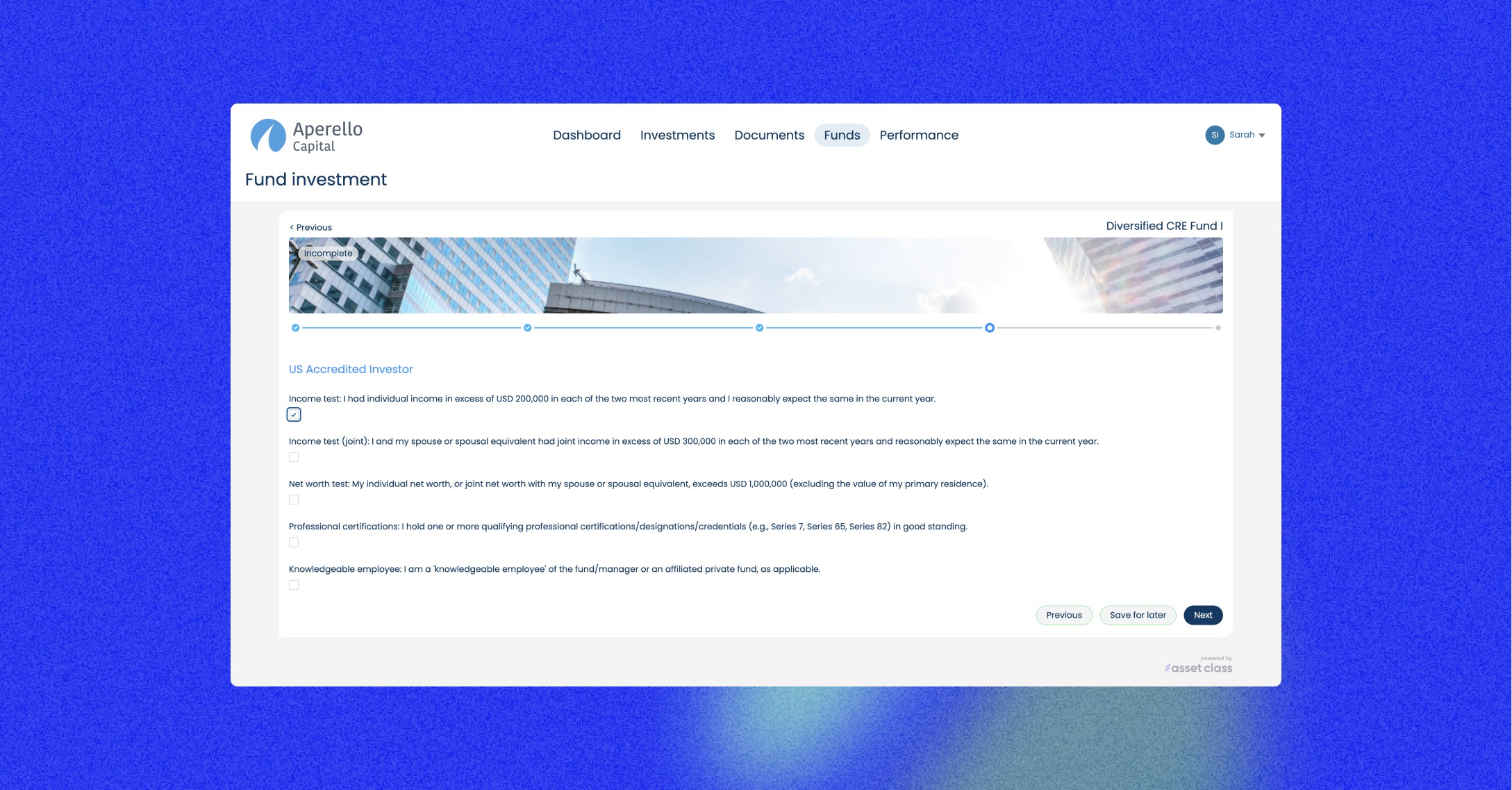
The component displays one Question List at a time. Clicking Next saves answers to the Questionnaire record and advances to the next list. Previous navigates back. All answered questions appear on the Summary screen at the end of the flow.
The component can be configured to target a specific Question List, which supports replay scenarios.
Investor Portal
Trusted Person Access for Entity Representatives
When a contact is added as an Entity Representative on an Entity Account, they can now select that entity in the portal's ‘Choose Existing Details’ step without needing to be manually added as a Trusted Person on a prior investment.
Portal Invite Error Messages
When a portal user invitation fails because the Manage Users permission is muted, the error message now states this clearly.
LP Name in Documents Component
The LP Name column in the Documents component is now linked to the LP record. It previously appeared blank in some environments, causing documents to be incorrectly grouped or missing from the portal tree view.
Performance Grids & Reporting
Performance Grid - Last Modified Date, Template Name and Field Warnings
The performance grid header now shows the last modified date, the template name, and any field access warnings. This helps administrators identify stale grids, confirm which template is in use, and spot fields that are restricted or unavailable.
16 Standard Performance Grid Templates
16 pre-built grid templates are now available for Energy, Portfolio Company and Real Estate asset types. These can be used as a starting point when configuring performance grids for funds in these categories.
Investor Activity Reports for Partner Contacts
The Investor Activity Report batch job now generates reports for Partner contacts who have direct investments (primary, secondary, plan owner, or entity representative). Partners who are only related as restricted or trusted persons are excluded. Existing Investor contact behaviour is unchanged.
Documents & File Management
Files Related List - File Limit Messaging
When the Files Related List hits its configured display limit, a message now shows how many files are displayed versus the total. For example: Showing the latest 200 of 678 files — use View All to page through all files. Previously, files beyond the limit were silently dropped with no indication.
Files Related List - ContentSize and ContentModifiedDate Columns
ContentSize and ContentModifiedDate can now be added as columns in the Files Related List configurable table view.
Default Document Visibility for Partner Role Records
When a new Trusted Person record is created with the Partner role, investor-level document visibility settings are now applied automatically.
Fund Operations & Investment Management
Config to Map Form of Ownership to Entity Formation Type
A new Config CMDT record accepts a JSON map of Form of Ownership values to Entity Formation Type values. When an intake is processed, if Entity Formation Type is null, the system looks up the correct value from this map based on the Form of Ownership field.
LP Relationship Registration Name - Extensibility and Recalculation
The Registration Name calculation on LP Relationship records can now be overridden using the Callable mechanism. A fix also ensures the name is recalculated when the Form of Ownership field changes, which previously did not trigger a recalculation.
Investment NAV Fields - Update on Approval Only
CurrentNetAssetValue and NavBalanceAsOfDate on Investment now only update when the related FundNavUpdate record status is set to Approved for Release.
Fund Assets
Fund Assets can now be created and attached to Funds directly
Upload Wizard Improvements
The Capital Call Data Import upload wizard copy has been updated to clarify the steps. Changes include:
Item 1 now reads: Click this link to download the template
Item 3 now reads: Click 'Continue' below to open the Data Import Wizard
A summary of the three key settings is shown before Continue is clicked
IBAN Field on Fund Bank Account
An IBAN field is now available on the Fund Bank Account creation form. The standard account number field does not accommodate IBAN formats, which affected non-US fund accounts.
Ongoing Improvements
Bug fixes and small usability improvements across the platform based on customer feedback.